
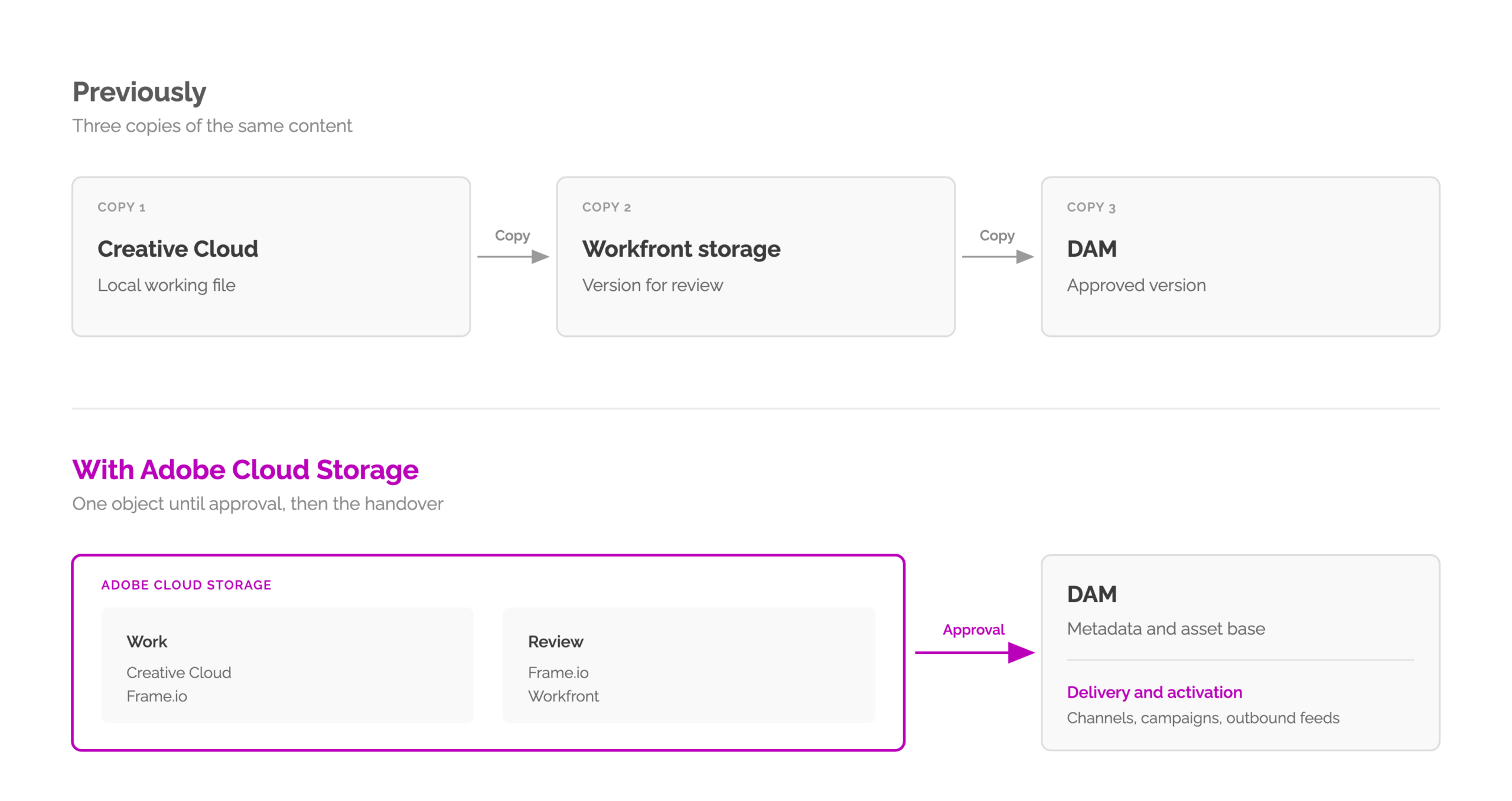
The same asset exists three times over: as a working file on the desktop, as a copy in Adobe Workfront, and as the approved version in the DAM. At the first change, nobody knows for certain which one counts.
Adobe Cloud Storage replaces the previous Adobe Workfront storage and turns separate repositories in Adobe Workfront, Adobe Frame.io and Adobe Creative Cloud into a shared one. It holds assets in progress and in review. Approved assets still live in the DAM.
Flipping the switch takes an hour. The preparation does not. Anyone facing this should work through the topic properly and then plan the migration in steps, not as a date.
We are currently running a migration of this kind. What lands on the table first is not the storage settings.
Why three versions of the same asset come into being
One pattern shows up in marketing organisations more than any other: the same asset in several versions.
In the old Adobe Workfront storage it is almost unavoidable. A designer works locally in a Adobe Creative Cloud application. Through the Adobe Workfront plugin they send a version across as a copy, and straight into approval if they want. After sign-off, the DAM integration files the asset in the DAM and Adobe Workfront keeps nothing but a reference to it.
That leaves three versions of the same content: the working file, the copy in Adobe Workfront, and the approved asset in the DAM. What is being worked on and what is being reviewed are two different files. When the designer changes something, they send the copy again, and by the third round nobody is sure whether the version in the review tool is the current one.
A second, quieter problem sits alongside it. When every document is shared individually, the permission situation grows over the years into something nobody fully knows any more. Who is allowed to see what, and why.
Neither of these is a tool problem. Both come down to where an asset lives and what its permissions derive from. The four patterns we keep running into are described on our page about the Content Supply Chain.
What is Adobe Cloud Storage in Adobe Workfront?
Adobe Cloud Storage is the new storage architecture behind documents in Adobe Workfront. Adobe also uses the abbreviation ESM for it, short for Enhanced Storage Model.
Neither size nor location is what separates it from the old storage. What matters is who owns it. The old one belonged to Adobe Workfront alone, while the new one is the shared layer for Adobe Workfront, Adobe Frame.io and Adobe Creative Cloud, with central metadata, versioning and audit trails.
In daily work this shows up in three places: where an asset sits, who is allowed to see it, and what else gets decided when someone creates a project.
What sits in Adobe Cloud Storage, and where the asset goes next
Adobe Cloud Storage holds assets in progress. In Adobe’s own words: work-in-progress assets that move between Adobe applications without anyone downloading and re-uploading them.
Two states live there:
- Someone is actively working on it, from a Adobe Creative Cloud application or in Adobe Frame.io.
- It sits in review, in Adobe Frame.io or in Adobe Workfront.
With approval, the storage layer is done. The approved asset moves to the DAM, for example AEM Assets. There it receives its metadata. From there it is available for delivery and activation, for channels, campaigns and outbound feeds.
Across the four areas of a content supply chain, the new storage therefore sits in Creative & Production. Delivery starts after that, and it starts in the DAM.
What Adobe Cloud Storage consequently does not do:
- It is not a DAM and not a place for approved assets.
- Metadata is not maintained there.
- It is not intended as the source for distribution.
Anyone introducing it as a DAM replacement moves their asset base somewhere it was not built for. The handover point stays exactly where it was: into the DAM after sign-off.
Three versions become two
This removes the copy that causes the most trouble. The working file and the version under review are the same object, no longer two files sharing a name. Adobe Cloud Drive makes it available on the desktop without a further copy coming into existence.
The second version in the DAM stays, and that is intentional. It is the handover to the asset base, and that was right before as well.
Why the storage switch is more than a filing question
A new permission model sounds like administration. In practice it decides who gets to see an asset, and it does so across product boundaries.
In Adobe Workfront, documents now inherit their permissions from the object they hang on. Sharing runs through the project, task or issue, no longer through an individual document. That is easier to keep track of than a permission situation grown from years of individual shares, where in the end nobody can say who is allowed to see what.
The scope reaches further than Adobe Workfront, however. Above the object sit the storage layer with its own roles and the Adobe Admin Console with the question of who enters an application at all. Adobe states plainly that restrictions from Adobe Workfront do not always apply in other Adobe applications.
A permission matrix built from Adobe Workfront roles alone therefore describes only one of three layers.
What a Adobe Workfront project triggers in storage
Under the new model a project is not just a place for work. Permissions, structure and storage consumption all hang on it.
- The storage model is set when the project is created. The default from Setup provides the frame. If free choice is enabled, the user decides in the creation dialog. If the project sits inside a portfolio, the portfolio dictates the model: in an Adobe Cloud Storage portfolio the choice is set and locked, in a legacy portfolio it is not there at all. Only outside a portfolio is it free.
- All permissions come from the project. For every task and issue the system creates a folder, named after the object and carrying its permissions.
- Strict naming rules apply. Program and project names must be unique within a portfolio, document names within their folder level. The characters
\ / : * ? " | < >are prohibited, as are a trailing period or space, and names stop at 255 characters. On a conflict, Adobe Workfront renames the object by itself.
Anyone generating projects from templates should check what names and structures come out of them. A template that creates the same task name twice today will produce automatically renamed objects tomorrow. It will only be noticed by whoever goes looking for a folder that is called something else.
Limits of Adobe Cloud Storage worth knowing beforehand
- Storage is pooled. Legacy and Adobe Cloud Storage objects count against the same quota of 60 GB per licensed user. There is no hard cap, although administrators get notices at 75, 90 and 100 per cent. Setup, System, Customer Info shows the current figure.
- The global documents area disappears. Documents are reached instead through a program, portfolio, project, task or issue. Anyone who used the global area as a search surface will need the object the document hangs on.
- Video reviews are capped. Ten per cent of paid Adobe Workfront licences per year. Once the number is reached, no new ones follow until the next annual period, with notices at 80 and 100 per cent. The cap does not apply to Adobe Frame.io Enterprise customers.
The same asset in Adobe Workfront, Adobe Frame.io and Adobe Creative Cloud
The shared storage shows itself most clearly in where the same asset turns up. For a long time the comments on a draft stayed wherever somebody had started the proof, because Adobe ran three separate approval tools. Adobe Workfront runs three approval systems side by side today.
On the Adobe Creative Cloud side the same construct carries a different name: Projects, a shared workspace across Adobe Home, Adobe Express, Illustrator, InDesign and Photoshop. Permissions there hang on the project, not on the individual file. For Teams and Enterprise accounts the assets sit in business storage rather than on a personal account. The link to Adobe Workfront arrived during 2026.
Since June 2026 Adobe Frame.io also sits inside the Adobe Creative Cloud desktop application, from version 6.10.0.252.3. Workspaces can be browsed in the Files section, and the context menu offers Open in Adobe Frame.io, Copy link and Download.
That gives two routes onto the workstation: Adobe Cloud Drive mounts the projects as a drive, the Adobe Creative Cloud application shows the same workspaces in its file area. For neither of them does a designer have to pull a copy.
What you need to use Adobe Cloud Storage
The switch is easy to find. Whether it exists in your environment at all is decided by the contract, and that catches most people out.
| For | What it takes |
|---|---|
| Getting it | New customers have Adobe Cloud Storage from the start. Existing customers receive it at contract renewal. Before that you need a Adobe Workfront version that supports it, and for that your Adobe account representative. |
| Switching it on | Any Workflow package, a Standard licence and administrator rights. |
| Adobe Cloud Drive | The Workflow Ultimate package. Only projects on the new storage appear in the drive, legacy projects do not. |
| Adobe Frame.io viewer | Included for all Adobe Workfront users at no extra cost, external participants assigned to a review included. |
| Cross-project view in Adobe Frame.io | A Adobe Frame.io Enterprise licence. |
For existing customers this shifts the question. It is not when to migrate, but when the contract comes up anyway and what should be ready by then.
How the migration to Adobe Cloud Storage works
Three stages, and none of them works retroactively.
First, switch the storage default
Under Setup, System, Preferences in the Storage preferences section you select Adobe Cloud Storage as the default. There you also set whether it applies to the entire organisation or only to specific groups.
The group option is the more useful tool. One department creates its new projects on the new model, and you see from real work what changes before it affects everyone.
Second, the choice at creation, and where it is not in the menu
Enabling free choice gives users two entries when they create something: “New Project” for the new storage, “New Project (Legacy storage)” for the old one. That is unambiguous, and little goes wrong there.
What goes wrong sits one line below, at “New Project from Template”.
A legacy template produces a project on the old storage unless somebody ticks the Create this project on Adobe cloud storage checkbox. Outside a portfolio it is empty. Inside an Adobe Cloud Storage portfolio it is ticked and locked, and in a legacy portfolio it is missing entirely.
In grown environments hardly any project is created by hand, almost everything comes from templates. So it is not the menu that decides the storage model, but the template inventory and the attention of whoever uses it.
The consequence stays invisible for a long time: an environment with two classes of projects. Features that depend on the new model then work in some projects and not in others, with nothing on screen explaining why.
This is why we would not enable free choice in the first place. The route can be steered through group assignment and through the templates. Anyone allowed to choose has to know what they are deciding, and at the moment of creating a project almost nobody does.
Third, convert the portfolios
Existing portfolios can be switched one at a time, in the same place under Storage preferences. Select portfolios, save, confirm. A Adobe Workfront administrator does this, not the project owner.
Read carefully here what comes along and what does not. Only the portfolio itself is converted. What stays behind is covered in the next section, because it applies equally to all three conversion routes.
What can move between the storage models and what cannot
Moving, copying and converting generally works only between like storage models. A task moves from one Adobe Cloud Storage project into another, but not into a legacy project.
From the old storage to the new one there are exactly three routes.
Scroll the table sideways, the first column stays in place.
| Route | What comes along | What stays behind |
|---|---|---|
| Legacy task becomes Adobe Cloud Storage project | Subtasks and issues | Documents and their approval workflows stay on the original project. Work approvals and resolving object links are removed. The original task is deleted. |
| Legacy portfolio becomes Adobe Cloud Storage portfolio | the portfolio itself | Child projects on legacy storage stay there, child programs likewise |
| Project from a legacy template | the structure of the template | Documents and document folders |
The same sentence sits above all three: documents and document folders come along in none of these cases. Whatever was on the legacy object before the conversion stays on the old storage.
Converting a portfolio does not move the asset base. It stays in exactly the same place, only with a differently labelled portfolio above it.
After a portfolio conversion, projects on the old storage can no longer be moved into it. New projects inside it use the new storage, and Adobe Frame.io becomes the viewer for their documents. A child legacy program only comes across once somebody manually adds an Adobe Cloud Storage project to it.
Why existing customers will run two storage models permanently
Documents do not come along in any of these conversions, and Adobe states that explicitly. Many legacy documents also carry an approval history from Adobe Workfront Proof, and Proof stays reserved for legacy objects. Document and evidence therefore sit on the old storage permanently.
Anyone who later has to prove who approved what and when needs both in the same place.
From this follows the statement that carries a migration plan: whoever used Adobe Workfront Proof will run two storage models permanently. Not as a transition, but for as long as the old records have to be kept. In regulated organisations that is quickly ten years.
Plan the migration as “everything will be across eventually” and you are planning for a state that never arrives. The useful questions are different ones. Which part of the asset base stays on the old storage, and how long does it have to remain reachable there. And who in the organisation will still know in two years that it exists and why.
The switch is not the work
None of the questions on this path is technically hard. All of them need somebody to sit down beforehand.
Our order of work: create and inspect in the sandbox first, knowing the Adobe Frame.io viewer does not run there. Then set the default, but for a single group rather than the whole organisation. That group creates its new projects on the new model, and you see from real work what changes day to day.
Do not enable free choice at creation. Go through the templates before anyone generates projects from them. Convert portfolios one at a time and establish beforehand which child projects will be left behind.
Take the time to work through the topic properly before you touch the first portfolio. Read the documentation to the end, including the paragraphs that look like small print. That is where the sentences sit that hurt later: that documents stay behind during conversion, that subtasks do not inherit, that the choice of storage hangs on a template.
And plan the migration in steps, not as a date. One group, then a second. One portfolio, then the next. Every step shows something the concept did not, and every step is small enough to straighten out.
Hand the migration to IT and you get a clean setting followed by six months of questions from marketing. The permission model decides who may see and approve what. That is a decision for work management and for the operating model, not for system administration. How Adobe Workfront sits within the Content Supply Chain is described in our article on Summit 2026.
Frequently asked questions about Adobe Cloud Storage in Adobe Workfront
What distinguishes Adobe Cloud Storage from the previous Adobe Workfront storage?
Above all the permission model. Documents inherit their permissions from the project, task or issue instead of being shared individually. Added to that are automatically created folders, a redesigned documents area, the Adobe Frame.io integration, and central metadata, versioning and audit trails.
Does Adobe Cloud Storage in Adobe Workfront replace a DAM such as AEM Assets?
No. Adobe Cloud Storage holds assets that are being worked on or that sit in review. After approval the asset moves into a DAM such as AEM Assets, receives its metadata there, and is available from there for delivery and activation.
Where does an asset sit after approval in Adobe Workfront?
In the DAM. Adobe Cloud Storage covers work and review, after which the asset base takes over. That was already the case in the previous model: Adobe Workfront filed the asset there through the DAM integration and kept only a reference. The handover point does not change.
Are existing projects migrated to Adobe Cloud Storage automatically?
No. Existing projects keep the storage model they were created with, and the default only affects newly created projects. Existing portfolios can be converted one at a time, although neither documents nor child projects come along. There is no mechanism that transfers the asset base.
What happens to the documents when a portfolio is converted to Adobe Cloud Storage?
Only the portfolio itself is converted. Child projects and programs on the old storage stay there, as do documents and document folders. After the conversion, projects on the old storage can no longer be added to the portfolio, and Adobe Frame.io becomes the viewer for documents in its new projects.
Do all documents have to end up on Adobe Cloud Storage?
No. Documents come along in none of the three conversion routes, they stay on the old storage. Many legacy documents carry an approval history from Adobe Workfront Proof, and Proof is unavailable on the new storage. Existing customers who used Proof will therefore run both storage models permanently.
Can the migration to Adobe Cloud Storage be reversed?
We treat the step as final and plan accordingly. Anyone counting on a rollback as an escape route should clarify it with their Adobe account representative rather than assume it.
What is Adobe Cloud Drive?
A desktop application for Mac and Windows that mounts Adobe Cloud Storage projects as a drive in Finder or File Explorer. Adobe Workfront projects appear there as folders and any installed application can work with them. It requires the Workflow Ultimate package, and only projects on the new storage show up in it.
Can I test Adobe Cloud Storage in a sandbox first?
Yes, with one restriction: the Adobe Frame.io viewer does not work in sandbox environments, so the full approval experience cannot be validated there. A Custom Refresh Sandbox has to be raised to a Adobe Workfront version that supports Adobe Cloud Storage first. Everything else, such as structure and permissions, can be tested.
Which licence do you need for Adobe Cloud Storage in Adobe Workfront?
Switching it on takes any Workflow package, a Standard licence and administrator rights. The real hurdle sits before that: new customers have Adobe Cloud Storage from the start, existing customers receive it at contract renewal. Adobe Cloud Drive additionally requires the Workflow Ultimate package.
How much storage does Adobe Cloud Storage include?
60 GB per licensed user, pooled across the whole organisation. Legacy and Adobe Cloud Storage objects count against the same quota. There is no hard cap, and administrators receive notices at 75, 90 and 100 per cent. Setup, System, Customer Info shows the current figure.
Which naming rules apply to projects on Adobe Cloud Storage?
Program and project names must be unique within a portfolio, document names within their folder level. The characters \ / : * ? " | < > are prohibited, as are a trailing period or space, and names stop at 255 characters. On a conflict, Adobe Workfront renames the object by itself.
What happens to existing Adobe Workfront Fusion scenarios?
Scenarios built on the legacy document approvals do not run against projects on Adobe Cloud Storage. Scenarios scoped to legacy projects continue to work. Each affected scenario needs a decision: edit, rebuild or retire. Adobe has announced new connectors for the third quarter of 2026.
Do you lose Adobe Workfront Proof with Adobe Cloud Storage?
No. On legacy objects the proofing viewer remains available, while objects on Adobe Cloud Storage get the Adobe Frame.io viewer instead. As the primary review surface the Frame.io viewer takes the place of Adobe Workfront Proof. So far there is no end date. The unified approvals flow replaces it.
What are Projects in Adobe Creative Cloud and how do they relate to Adobe Cloud Storage?
Projects is the shared workspace on the Adobe Creative Cloud side, available in Adobe Home, Adobe Express, Illustrator, InDesign and Photoshop. It is the same construct as in Adobe Workfront storage: permissions hang on the project rather than the individual file, and the assets sit in business storage.
Is there a cap on video reviews in Adobe Workfront?
Yes. Video reviews are capped at ten per cent of paid Adobe Workfront licences per year. Once the number is reached, no new ones follow until the next annual period. Notices appear at 80 and 100 per cent. The cap does not apply to Adobe Frame.io Enterprise customers.
Sources
- Adobe cloud storage overview (Experience League)
- Object permissions and access level overview for the Adobe cloud storage model (Experience League)
- Adobe Cloud Storage and Collaboration API, Roles and permissions (Adobe Developer)
- Move to Adobe Workfront on Adobe cloud storage (Experience League)
- Get started with unified review and approval (Experience League)
- Available functionality for document approvals (Experience League)
- Adobe Cloud Drive overview (Experience League)
- Enable Adobe cloud storage (Experience League)
- Convert portfolios to Adobe cloud storage (Experience League)
- Projects overview (Adobe Help Center)
- Release 26 Q3 overview (Experience League)